Find and Paste Your IDX Embed Codes
The general guide for platforms without their own article here. Find your embed code in the dashboard and paste it into the element your builder offers for this kind of code.
Written by IDX Plugin, an independent IDX Broker Developer Partner, not affiliated with IDX Broker.
On this page
In short
- One small code puts a widget live on the page you choose.
- Paste once; new listings and widget edits show up on their own.
- Any element that renders code with scripts works, whatever its name.
- Can't find the element? Send us your site and we place it for you.
This is the mechanic behind the whole integration described in Add IDX to Any Website with HTML. Search forms and listing widgets are built and styled in your IDX Plugin dashboard, and each one produces a small code snippet. Your website only needs a place to paste it.
The general guide for other platforms
WordPress, Wix, Squarespace and Webflow have their own step-by-step articles in this help center. Other platforms are covered by this one, because the method is much the same. Here is what your builder needs:
- An element that renders this kind of code, scripts included.
- It is usually called HTML, Raw HTML, Custom HTML, Embed or Code.
- On some platforms, that element comes with a paid plan.
The element you are looking for
Open your website's page builder and look for the element that accepts custom HTML. The name varies, HTML, Raw HTML, Custom HTML, Embed or Code Embed, and what matters is that it renders the code you paste into it, scripts included. Place that element exactly where the widget should appear on the page.
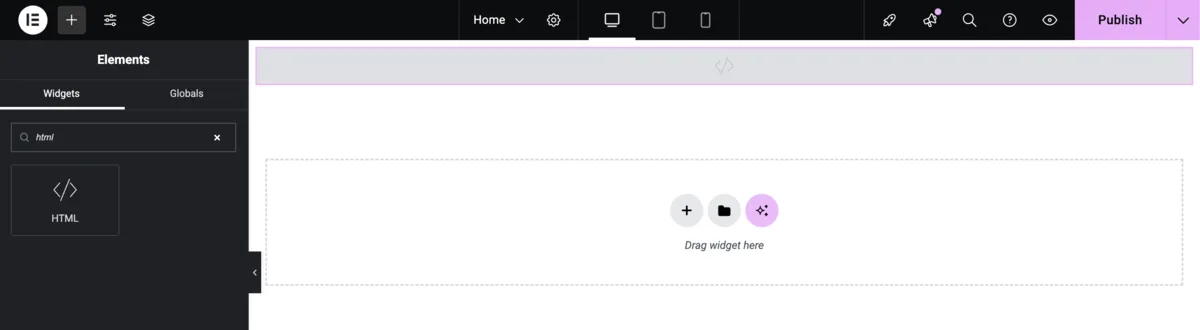
Copy the code from your dashboard
-
1
Pick the widget
In your IDX Plugin dashboard, find the search form or listing widget you want on the page. Your dashboard already holds a set of ready widgets, running on the data from your IDX Broker account, and you can create your own.
-
2
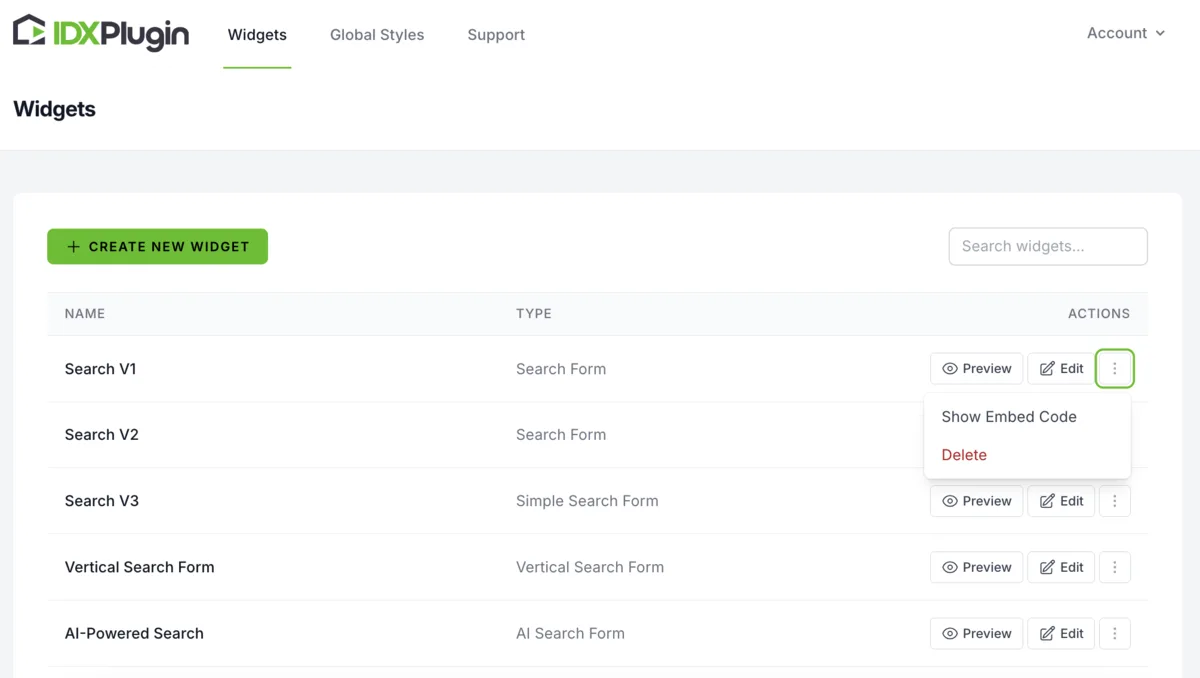
Show and copy the embed code
Click Show Embed Code on the widget and copy the snippet from the popup.
-
3
Paste it on your page
Return to your page builder, paste the code into the HTML element and save the page. The widget renders with live data from your IDX Broker account.
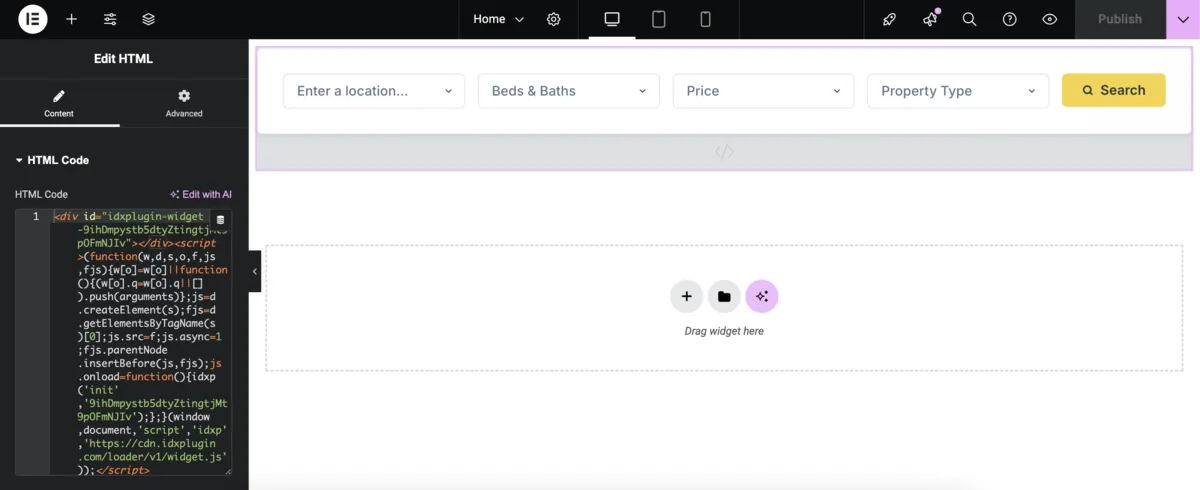
The video below shows the flow on WordPress with Elementor. The steps are much the same wherever you paste it: copy the widget code, paste it into your platform's HTML or Embed element, save.
What a pasted code looks like
The two widgets below are placed on this page the same way, with one snippet each. A search form and a row of listings, both live and both working.
Paste once, it keeps itself current
The code is a reference to the widget, not a copy of it. When listings appear, change or sell, the cards refresh on their own, and when you edit the widget in your dashboard, change fields, filters or styling, the page follows without re-pasting anything. Which widgets to use and what they can do is covered in Search Forms and Listing Widgets.
Already on IDX Broker?
Create a free IDX Plugin account, add your IDX Broker API key, and every widget with its embed code is ready in your dashboard, filled with your own listings.
Get the widgets, it's free No extra invoice. You only pay IDX Broker.