Add Listing Widgets to Squarespace
How to put live MLS listing cards on any Squarespace page, from the homepage to community pages.
Written by IDX Plugin, an independent IDX Broker Developer Partner, not affiliated with IDX Broker.
On this page
In short
- Live listing cards sit on any Squarespace page, grid or carousel.
- A community page can show only that community's listings.
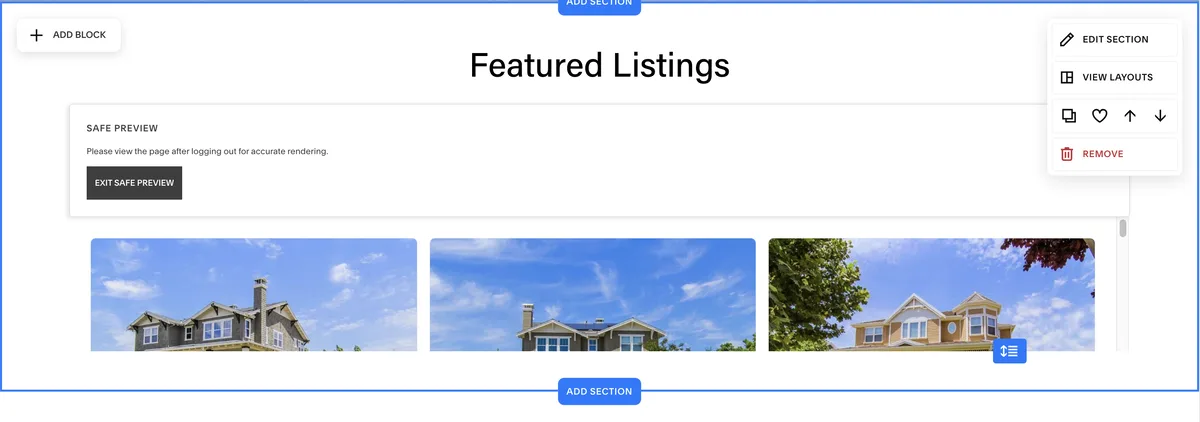
- The preview may clip it; the live page shows it in full.
- A paid Squarespace plan is required.
This guide covers one task from IDX Plugin for Squarespace: putting live listing cards on a Squarespace page. What the cards can do, lead capture, filtering and layout options, is covered in Listing Showcase and Listing Carousel. Here you get the Squarespace-specific part.
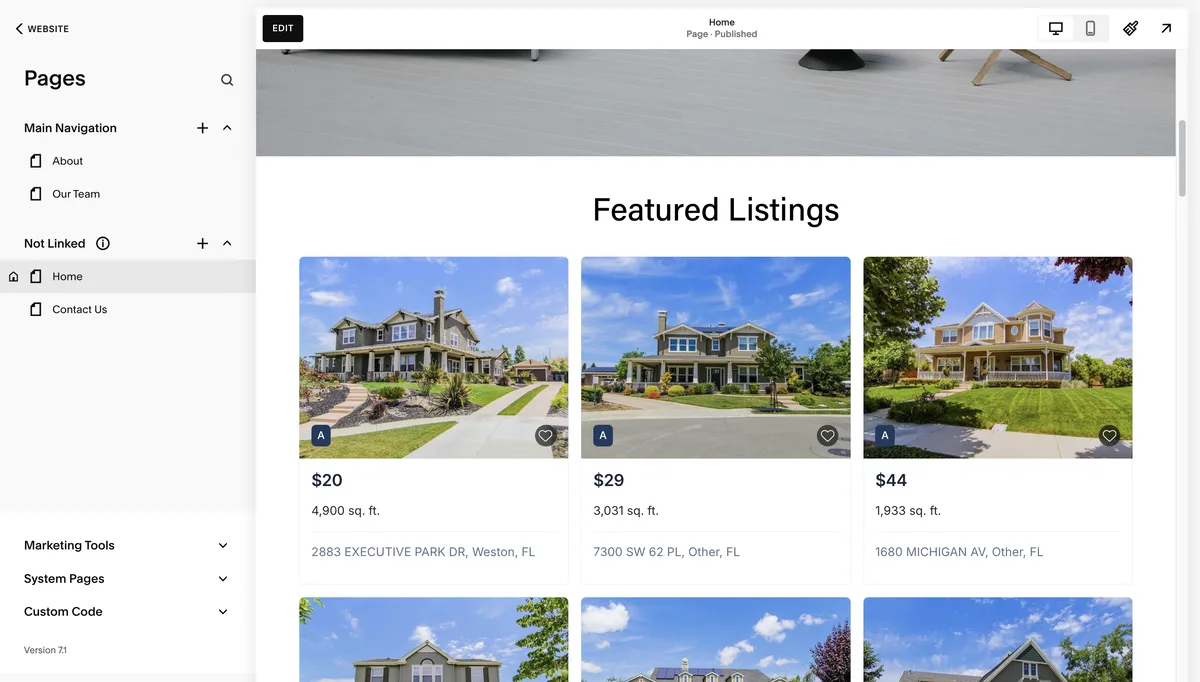
This is the showcase grid running live. On your site the same cards show your own listings.
Add the widget to your page
-
1
Choose a widget
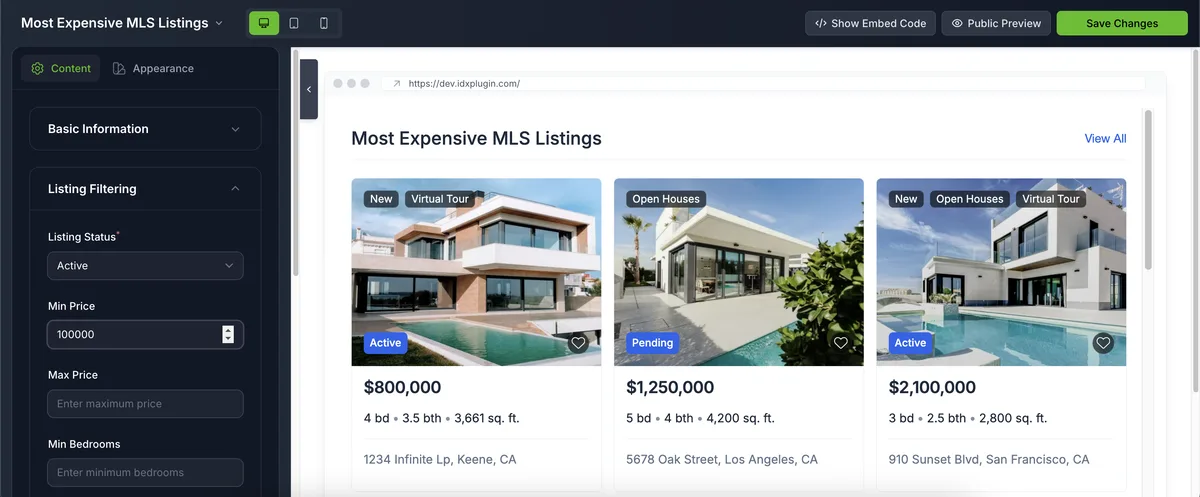
In your IDX Plugin dashboard you will find a set of ready widgets, grid and carousel, already running on the listings from your IDX Broker account. You can also create your own targeting specific locations, price ranges or property types.

-
2
Configure which listings it displays
Use the filtering options to control what appears: location, price, property type and more. Adjust the appearance too, including columns, spacing, image ratio and label styles.
-
3
Get the embed code
Click Show Embed Code and copy the snippet.
-
4
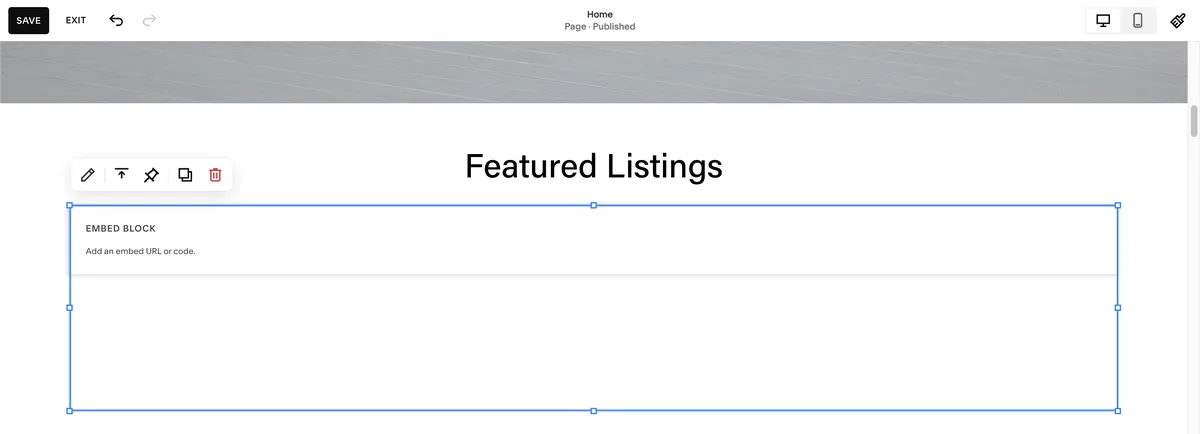
Add an Embed block on your page
Return to your page editor and insert a new Embed block where the listings should appear.
-
5
Paste the code
Insert the code snippet into the block and save the page.
One widget per page idea
A widget can go on any Squarespace page, not just the homepage. Community pages, a luxury page, a page for one price bracket, each gets its own widget with its own filters, and each updates itself from your IDX Broker account.
The carousel is the other option, a separate widget, useful when a section should stay short. It is live below.
Already on IDX Broker? Try the cards on your own listings.
Create a free IDX Plugin account, add your IDX Broker API key, and the styled widgets are ready in your dashboard, filled with your own listings. Open a preview and see how the cards will look before you place anything on Squarespace.
See it on your own listings No extra invoice. You only pay IDX Broker.